



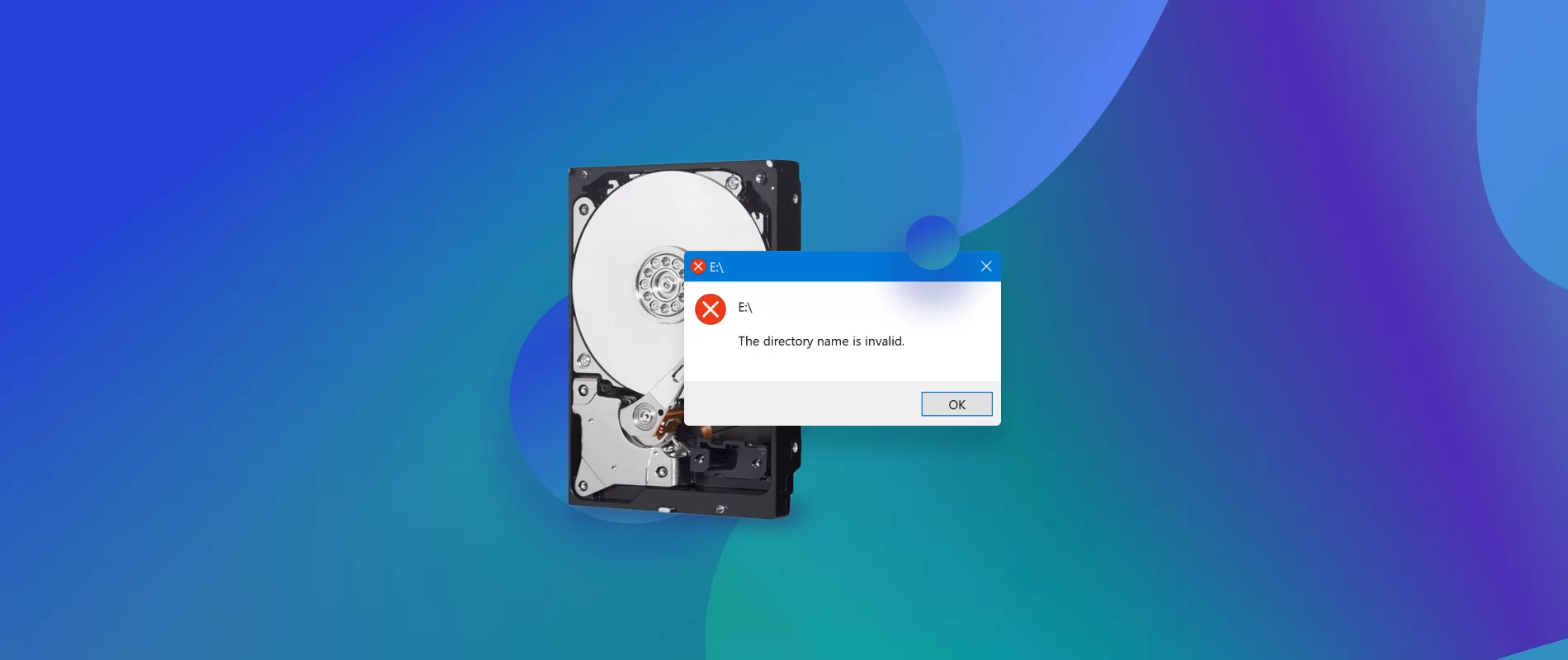
Some moments feel stressful when files stop opening and important work seems lost. People often panic because photos, documents, and projects get damaged without clear reasons. However, users want a simple and easy way to recover files from corrupted hard drive.
Meanwhile, Recoverit has also rolled out its new V14 version, making file recovery easier for everyone. This guide explains easy and simple ways for everyone without advanced skills.
Part 1. What File Corruption Means and How It Happens
Part 2. 6 Proven Ways to Recover Files Damaged or Corrupted on Any Drive
Conclusion
Part 1. What File Corruption Means and How It Happens
File corruption occurs when there is a change in data that is stored such that it cannot be read by programs. This prevents programs from reading it well, even if it still appears on your drive. However, some damage remains, and hidden files appear open but contain incorrect data. File recovery may need when hardware issues, like bad sectors or power cuts, occur on drives.
Understanding the causes helps plan steps to recover corrupted files later. Corruption mixes those blocks, adds wrong parts, or wipes some out altogether. Software glitches add risk, from crashes during saves to bugs that swap data. Also, hidden issues where data appears fine, but contains bad information.
Part 2. 6 Proven Ways to Recover Files Damaged or Corrupted on Any Drive
Many users are afraid of losing data when files get corrupted by chance. This section explains clear actions to restore corrupted files from different storage devices:
Method 1: Check Backups & Alternate Apps
First, check for a backup if you created one previously. When essential files get corrupted, it is necessary to recover recently deleted files. Backups store safe, earlier copies from drives or dedicated software.
Cloud services like Google Drive or Dropbox often store previous versions of files, allowing complete restoration. Restoring files from these backups bypasses corruption, replacing damaged versions with healthy ones. Additionally, alternative apps often read damaged data when standard programs fail.
Method 2: Use Built-in Windows Tools (Command Prompt)
You can also use the built-in Windows tool, like CMD, to recover corrupted files without extra software. Command Prompt allows you to scan drives and restore available data from damaged sectors. SFC and DISM also fix corrupted system files, while ATTRIB reveals hidden files.
Consequently, Windows File Recovery helps retrieve deleted or somewhat corrupted data. Take guidance to recover damaged files via the command prompt:
Step 1. Press Windows, type in Command Prompt, and hit the “Run as Administrator” button. Once this has been accessed, enter “chkdsk X: /f /r” and press “Enter”, and replace X with your drive letter.
Step 2. Next, type “attrib -h -r -s /s /d X:\*.*” to restore hidden or inaccessible files. Finally, run “sfc /scannow” to fix corrupted system files affecting file access.
Method 3: Try File-Specific Repairs (Microsoft Office)
Microsoft Office offers file-specific repair, which rebuilds readable content while discarding broken parts. This method preserves text and layouts across Word, Excel, and PowerPoint. It scans broken headers and skips bad spots while saving sheets and slides. This is crucial to restore corrupted files when documents get damaged. Adhere to the steps below to repair damaged files via Microsoft Office:
Step 1. To initiate, open the “Microsoft Office” app related to the damaged file type. Upon accessing it, click “File”, then select “Open” from the menu.
Step 2. Now, browse and select the corrupted Word or PowerPoint file. At last, click the small arrow next to Open, then choose “Open and Repair.”
Method 4: Restore Previous Versions
People’s essential files get damaged, making it urgent to recover corrupted files. Plus, Windows “Restore Previous Versions” uses snapshots created before the damage occurred. These snapshots, stored via File History, contain intact copies of files and folders. Hence, follow the steps below to restore previous versions:
Step 1. Open “File Explorer” and go to the folder containing the corrupted file. Next, right-click the damaged file or folder, then select “Properties.”
Step 2. Afterward, head to the “Previous Versions” tab and choose a version dated before the file became corrupted. Click “Open” to preview the file and select “Restore” to replace the corrupted file.
Method 5: Use Data Recovery Software – Recoverit
Many people lose important data, which can disrupt critical personal and work tasks. You should try Recoverit data recovery to restore corrupted files as it supports 1M+ devices, including cameras and SD cards. This dedicated tool has launched version V14, which performs data scans within 5 minutes. Moreover, it supports recovery of data from BitLocker-encrypted drives for secure Windows storage.
Further, you can recover NAS hard drive data via remote connection without dismantling the server. Besides that, it creates a bootable USB to access the crashed computer’s data. In addition, users can recover 1,000+ file types like media, documents, archives, and more. Furthermore, Recoverit restores files deleted or damaged by viruses, malware, or ransomware attacks.
Key Features
1. Video Defragmentation: Deep scan technology repairs fragmented videos and restores playable media files.
2. Disk Image: Recover files from disk images and serve as mirrored copies of storage devices.
3. RAW Recovery: Retrieves data from storage devices showing RAW file system errors for future use.
Step-by-Step Guide to Recover Damaged or Broken Files Using Recoverit
The following are the steps that would help users recover their files from the external devices:
Step 1. Select the Drive for Recovery
Open the software to pick the storage drive where your lost files were located.
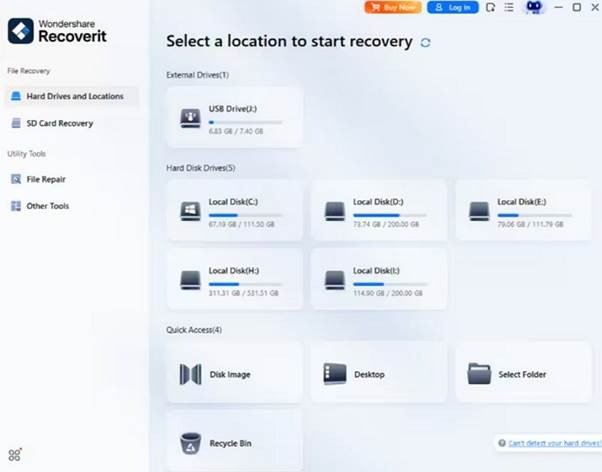
Step 2. Scan the Selected Drive
The program will scan the chosen drive thoroughly. Once scanning is complete, choose the files to recover and hit “Recover.”
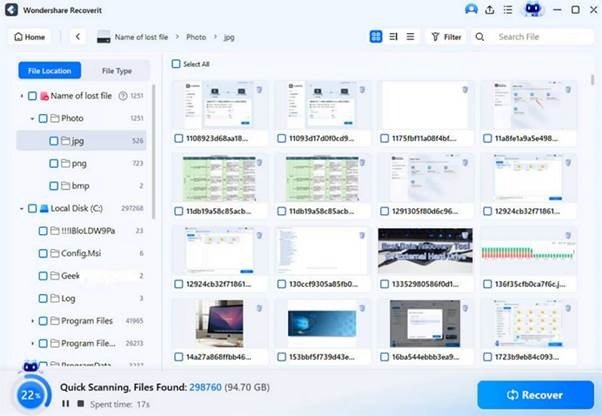
Step 3. Preview and Restore Files
You can preview the recovered files after scanning and then click “Recover” to save them to your PC.

Method 6: Seek Professional Help
When the above methods fail, contacting experts becomes essential to recover corrupted files. Professionals use advanced tools and clean labs to fix damaged drives without data loss. They assess whether the problem is logical or mechanical, then create a solution.
Further, their experts even extract files from bad sectors or broken systems to repair documents. As a result, all recovered files get verified to ensure they open well.
Conclusion
To conclude, losing essential documents and files can cause stress and confusion. With careful methods, anyone can improve the chance to recover files from corrupted hard drive with success. Each method in this guide provides a clear way to restore data without further damage. However, when critical files matter most, you need a reliable solution. Therefore, Recoverit becomes the trusted choice, offering speed and secure recovery for everyone.