


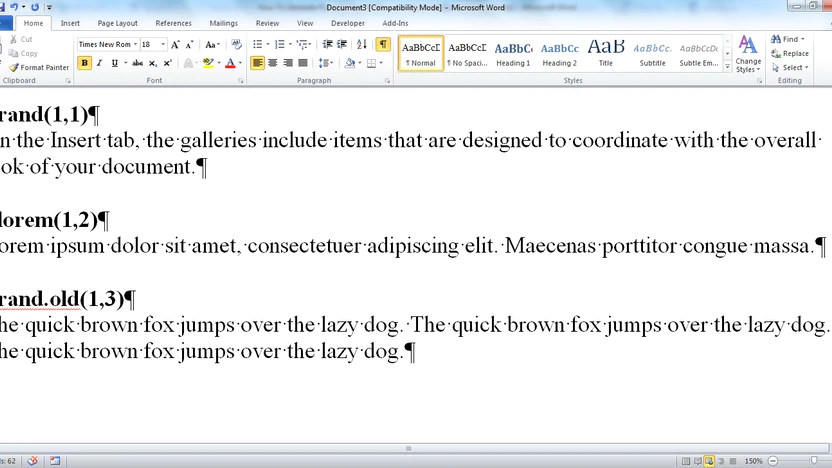
We all are aware that Microsoft Office Suite has been built to make our lives easier when it comes to some office based work. As the years pass by, this application got updated and is still under the updating process. The new features that are added in it are completely in accordance with the needs of Microsoft Office Suite users. The most common application in this collection is Microsoft Word which has been used by almost everyone. Either you are a student or a teacher, an office employee or boss, you will have to and might have used this wonderful member of Microsoft family.
You can use font generator app online here : https://fontgeneratorapp.com/
You can not only write anything in it but save it and edit it according to your changing requirements using private note. This is the most widely used application because of its ease in usage and accessibility. The best part of Word is that it also allows you to generate any random text as well. This feature is mostly used by those who teach the usage of Microsoft Word to the new users who do not have any idea about what to write.
In this regard, Microsoft Word provides you with some random text in order to teach the newcomers about the formatting and editing features that it offers. This is not a specific text about a specific topic. It is just some random text that might even be Lorem Ipsum.
In a Word document with a default of 5 paragraphs and 3 phrases, produce random content using the current language:
- Place the cursor where you wish the random text to appear in the document.
- Then you will have type “=Rand()”
- To create random text in a Word document using the current language and changing the amount of paragraphs and sentences:
- Place the cursor where you wish the random text to appear in the document.
- =RAND(number of paragraphs, number of sentences)
- Then press enter. Word will generate a random piece of text from its database.
Creating Latin text at random (Lorem ipsum text)
- In a Word document with a default of 5 paragraphs and 3 sentences, produce random Latin text as follows:
- Place the cursor where you wish the random text to appear in the document.
- Then you will have to type =LOREM().
- Starting with Lorem ipsum, Word will generate Latin text.
To create a document with random Latin text and vary the amount of paragraphs and sentences:
- Place the cursor where you wish the random text to appear in the Word document.
- =LOREM(number of paragraphs, number of sentences) =LOREM (3,2).
- Then press enter
By following these steps you can easily generate random text depending upon your requirement. You can add as many paragraphs and sentences as you want. This is to be noted that the paragraphs that appear randomly will be repeated and will not be unique at all.
Conclusion:
By following these steps, you can easily generate random text on Microsoft Word and enjoy editing and formatting some random text as per your requirement.