


It’s 2 p.m. at a small agency. A client has just approved a video for one TikTok account, another account has a backlog of unanswered comments, and the colleague who handled both this morning is passing them to someone else for the afternoon. The question isn’t what to post next. It’s whether the next person can open the right account, in its usual setup, without guessing.
That is the heart of how to manage multiple TikTok accounts: give each account a clear owner, keep its app or browser environment intact, assign it a dedicated connection where needed, and check everything before publishing. CyberYozh App handles the connection part with dedicated mobile proxies, so every account runs through a route your team controls.
TL;DR
- TikTok allows multiple accounts. The real challenge for teams is keeping each account, its device, and its connection organized so anyone can pick up the work.
- A reliable setup has three parts: a clear account owner, a separate app environment (such as a cloud phone), and an assigned network connection.
- The cloud phone runs the TikTok app and keeps its data. CyberYozh App mobile proxies provide the connection behind it, through real 4G, LTE, and 5G carrier networks.
- Choose dedicated proxies for accounts you publish from daily and shared ones for lighter tasks. Both include unlimited traffic for uploads and media checks.
- Change the IP only when there’s a reason. A proxy controls the network route, but it can’t prevent bans or guarantee views.
Choose the right way to manage your TikTok accounts
Before you decide how to manage multiple TikTok accounts, look at who works on them and where they run. Not every setup needs extra infrastructure.
If you personally handle a few accounts, TikTok’s built-in account switching is usually enough. Once several people work on business accounts, the priority shifts: access should come through TikTok’s own permission tools, not shared passwords. Agencies running many client accounts in the native app face a third situation. Each account needs its own environment that keeps its login and app data between sessions, and that’s where a dedicated connection starts to matter.
| Situation | Appropriate starting point | Role of a proxy |
| One person managing a few accounts | TikTok’s account-switching options | Not automatically necessary |
| Several people managing business accounts | TikTok’s access and permission tools | Does not replace access permissions |
| Agency needing separate native-app environments | Assigned cloud phones with persistent app data | Provides a configurable connection for each environment |
| Team performing supported browser tasks | Separate browser profiles | Routes traffic from the configured profile |
For eligible businesses, TikTok’s Organization Accounts add organizational ownership, multi-user access, and role-based permissions. Set these up wherever they apply. A proxy controls the network route, not who is allowed into the account.
The rest of this guide focuses on the last two rows: teams that need separate TikTok environments and a controlled connection for each one.
Give each TikTok account a consistent place to run
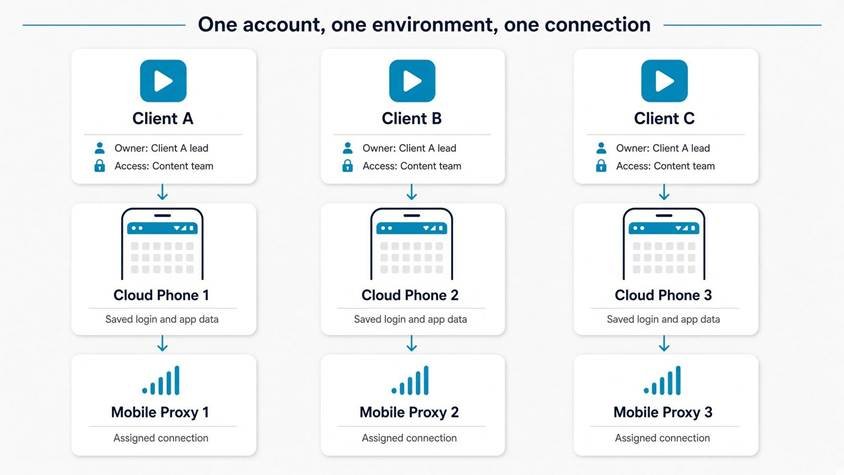
When you manage multiple TikTok accounts for clients, the most reliable setup has three parts. Each one answers a different question, and keeping them separate makes problems easier to trace.
Account ownership: who is in charge? Decide who controls the recovery email, phone number, and two-step verification for each account, and who can approve new access. This is usually the client or a named account lead, not whoever logged in last.
App environment: where does the account live? This is the Android device or browser profile that holds the account’s login session and local app data. For native-app work, many agencies use TikTok accounts on cloud phones, where each virtual Android device keeps its data between sessions.
Network connection: how does it reach the internet? This is the proxy configuration that environment uses.
These are different services. The cloud-phone provider supplies the mobile phone environment. CyberYozh App supplies the mobile proxy connection that environment runs through.
Each client account should be given its own clearly labeled environment and connection, such as “Client A / Phone 1 / Proxy 1.” TikTok doesn’t require this, and it won’t guarantee that accounts are never linked. It’s an organizational choice: anyone on the team can see at a glance which account, device, and connection belong together.
Choose mobile proxy features around your TikTok tasks
When choosing TikTok mobile proxies, the useful question isn’t which provider has the longest feature list. It’s which features match what your team actually does with each account. CyberYozh App mobile proxies run on real 4G, LTE, and 5G carrier connections, so the native TikTok app on each cloud phone connects through a mobile network. Here’s how the rest of the features map to daily TikTok work.
Keep control of the connection assigned to each account
CyberYozh App dedicated mobile proxies run on private modem channels, so one channel serves one customer instead of a crowd of shared users. Record which proxy belongs to which account and environment, and the assignment stays clear when someone new takes over. “Dedicated” means the channel is yours. It doesn’t mean a permanently fixed public IP, since mobile carriers share public addresses across many subscribers.
Match dedicated or shared proxies to each account’s role
CyberYozh App offers both dedicated and shared mobile proxies. Dedicated proxies suit the client accounts you log into and publish from every day, where a clearly assigned channel matters most. Shared proxies cost less and work well for lighter tasks, such as checking how published posts appear. Dedicated isn’t automatically better. Choose based on what each environment actually does.
Plan for video uploads and repeated media checks
Uploading videos, previewing drafts, and checking published posts all use data. CyberYozh App dedicated and shared mobile proxies both include unlimited traffic, so the team doesn’t need to ration those tasks or watch a data meter. Unlimited traffic means no data cap, not unlimited speed. Actual speed still depends on the carrier and location.
Change the IP deliberately when needed
CyberYozh App lets you change the IP through a link or the API. Treat this as a maintenance tool, for example when a connection becomes unstable. Changing the IP before every login, or in the middle of an upload, adds instability instead of removing it.
Match the connection method to your cloud phone
CyberYozh App mobile proxies support HTTP, HTTPS, SOCKS5, UDP, and VLESS where applicable. Check which methods your cloud phone accepts, then choose a listing that supports the same one.
Available locations and connection options vary by listing, so check the specific product before buying.
Set up CyberYozh App mobile proxies for multiple TikTok accounts
This is the practical part of how to manage multiple TikTok accounts: one account, one environment, one connection, set up and tested before anything goes live. Follow these steps for the first account, then repeat.
1. Map each account to its owner and environment
Start a shared tracking sheet with one row per account: account name, client, authorized operator, cloud-phone or browser-profile label, and assigned proxy. Keep passwords out of it. Store logins in a password manager instead, so the sheet can be shared freely without exposing access.
2. Choose a mobile proxy for the required location
In CyberYozh App, check which locations are currently available, which connection methods each listing supports, and what the plan includes. The location you pick sets where the connection exits to the internet. It doesn’t decide who sees your videos or make an account eligible for any TikTok feature.
3. Copy the proxy connection details
After purchase, the proxy appears in your CyberYozh App account. For HTTP or SOCKS5, you’ll need four details: host, port, username, and password. For VPN-style connections, use the configuration supplied for that method instead.
4. Connect the proxy to the assigned environment
Open the cloud phone you labeled for this account and find its proxy settings. Most providers let you set the proxy at the device level, so the whole Android environment, including the native TikTok app, uses it. Enter the details, save, and restart the device if your provider asks you to.
Be careful with the difference here. A proxy added only to a browser inside the device covers that browser alone. The TikTok app can still connect through a different route.
5. Test the route and a representative TikTok task
From the configured environment, open an IP-check page and confirm the exit IP and location match your proxy. Then log in with authorized access and run a real task, such as uploading a private test video.
An IP-check page only confirms the route for that one request. The login and upload test shows whether the app itself works properly through the connection.
6. Save the assignment before adding more accounts
Once everything works, update the tracking sheet, confirm the account’s recovery email and phone are still accessible, and only then move to the next account. Setting up accounts one at a time makes any problem easy to trace to a single row.
Keep publishing consistent when another teammate takes over
Handovers are where efforts to manage multiple TikTok accounts most often break down. The setup works fine until someone new opens the wrong device or logs in from scratch. A short routine prevents that.
When a teammate takes over an account, they should:
- Find the right environment. Use the tracking sheet to locate the labeled cloud phone or browser profile, such as “Client B / Phone 2.”
- Confirm the account. Check the username on screen before doing anything. The session should already be signed in, because the environment keeps its app data between shifts.
- Check the connection. A quick IP check confirms the assigned proxy is active.
- Open the approved content. Work only from the files or drafts the client has signed off.
Two habits keep this reliable. Give each person access through TikTok’s supported permission tools where available, rather than sharing passwords. And avoid clearing app storage or moving an account to a different environment during routine handovers.
The result: the next person picks up exactly where the last one stopped, without guessing which login, device, or connection belongs to the client.
See how a three-client TikTok setup works in practice
The following is an illustrative example, not a client case study.
A small agency manages TikTok for three unrelated brands: a coffee roaster, a yoga studio, and a skincare shop. Each account has its own Android cloud phone, a CyberYozh App mobile proxy recorded in the tracking sheet, and a named owner on the client side.
Here’s a typical morning for the coffee roaster’s account. Sara, the content manager, opens “Coffee / Phone 1” and confirms the account is already signed in. She checks the video the client approved yesterday, uploads it with the agreed caption, and then views the published post to make sure the audio and text overlay look right. At noon, she hands comment replies to her colleague Ali, who follows the handover routine from the previous section.
Each tool has a clear role. The cloud phone keeps the app and its data. TikTok’s permission tools control who can access the account. A scheduling tool, if the agency uses one, plans the posts. CyberYozh App supplies the assigned connection and the controls to manage it.
Diagnose login and upload problems before changing the setup
When something goes wrong, the instinct is to change the proxy first. Usually it’s better to find the actual cause, because changing several things at once makes the problem harder to trace.
A login challenge appears. Complete TikTok’s verification steps, then check whether anything changed recently, such as a new device, a new operator, or an updated proxy. Repeated login attempts in a short time can make things worse.
An upload fails. Check each part on its own: the video file (format, size, length), the TikTok app (updates, error messages), the connection (does an IP check load?), and the proxy’s status in your CyberYozh App account.
The location looks wrong. Run an IP check from the environment and compare it with the proxy you bought. IP location databases don’t always agree, and mobile carrier addresses sometimes show a nearby city. Investigate before replacing a working configuration.
Views drop. Look at the content first: watch time, posting time, and any notices in the account. A drop in views is rarely proof of a “shadowban” caused by an IP.
It also helps to know what a proxy can and can’t do. It controls the network route an environment uses. It doesn’t grant account access, fix content violations, guarantee views, or replace a working app environment.
Build your next TikTok account setup with CyberYozh App
Back at the agency, the afternoon handover is simple when every account has a documented setup that any authorized teammate can open and use. That’s the practical answer to how to manage multiple TikTok accounts as your client list grows.
Start small. Open the CyberYozh App proxy catalog and choose a dedicated proxy for the accounts you publish from, or a shared one for lighter tasks. Shared mobile proxies start from $1.70 per day with unlimited traffic. Confirm the location and connection method your cloud phone supports. Connect it to one labeled environment, then test a real publishing session: log in, upload a video, and review the post.
Once that first account works, record it in your tracking sheet and set up the next one the same way.
FAQs about managing multiple TikTok accounts
Can you have multiple TikTok accounts?
Yes. TikTok allows one person to have more than one account. Problems usually come from breaking the rules, such as creating accounts to get around a restriction or ban, not from owning several accounts.
How many TikTok accounts can you manage on one device?
There’s no single fixed number. The TikTok app lets you add several accounts and switch between them, but the in-app limit can change. Tools like schedulers or cloud-phone plans may also set their own limits. How many accounts you own is a separate question.
Do you need a proxy for every TikTok account?
Not always. One person switching between a few accounts usually doesn’t need one. Proxies become useful when an agency runs separate environments for different clients and wants a controlled connection for each. CyberYozh App offers dedicated mobile proxies for accounts that need their own channel and shared ones for lighter tasks, both with unlimited traffic.
Can you manage multiple TikTok accounts on cloud phones?
Yes. Each cloud phone works as a separate Android device that keeps its app data between sessions. Pairing each one with its own proxy is a practical answer to how to manage multiple TikTok accounts for different clients.
What is the difference between a TikTok mobile proxy and a cloud phone?
A cloud phone is the device where the TikTok app runs. A mobile proxy is the internet connection that device uses. They come from different providers and do different jobs: the cloud-phone platform supplies the Android environment, while CyberYozh App supplies the 4G, LTE, or 5G connection behind it.
Should you rotate your proxy IP every time you switch accounts?
No. Frequent changes add instability, especially during logins or uploads. Keep each account on its assigned connection and change the IP only when there’s a real reason, such as an unstable connection. With CyberYozh App, you can change the IP manually or through the API, so the change happens when you decide, not on a timer.
Can a mobile proxy prevent TikTok bans or guarantee views?
No. A proxy controls the network route. It doesn’t fix rule violations, protect accounts from restrictions, or affect how TikTok distributes content.
How can a team share access to multiple TikTok accounts?
Use TikTok’s supported permission tools, such as Organization Accounts where eligible, instead of sharing passwords. Combine this with a tracking sheet that lists each account’s owner, environment, and connection.
Meta title
Manage Multiple TikTok Accounts with Mobile Proxies
Meta description
Learn how to manage multiple TikTok accounts with cloud phones and CyberYozh App mobile proxies. Includes setup steps, team handovers, and fixes.