

Wheon
No Result
View All Result
  • Home
  • Latest
  • Gaming
  • Crypto
  • AI
  • Finance
  • Business
  • Education
  • Contact Us
Morning News
No Result
View All Result

Wheon > Latest > How To > How to Use a Visa Gift Card on Amazon

How to Use a Visa Gift Card on Amazon

Sachin Khanna by Sachin Khanna
in How To
0
amazon gift card

There’s $3.27 left on your Visa gift card. Are you scratching your head wondering how many packs of gum you can purchase? Put down the calculator; we’ve got news for you.

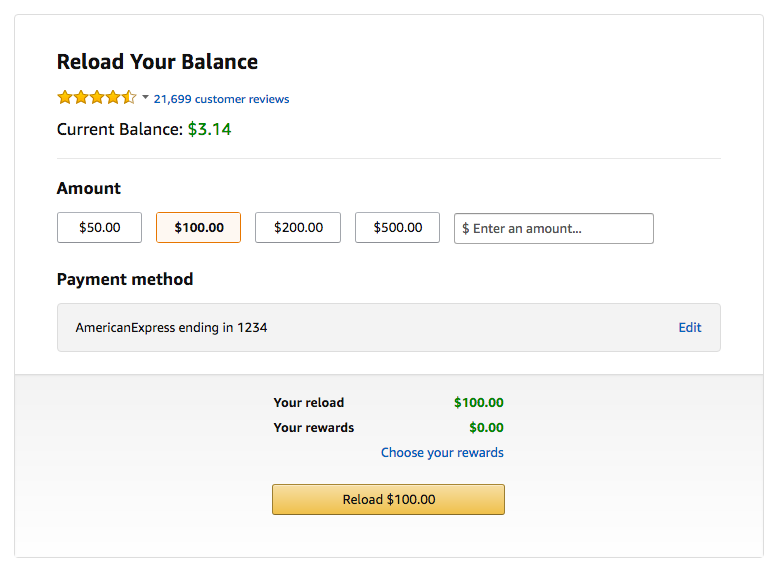
Did you know that you can use your Visa gift card on Amazon? All you have to do is follow the simple steps below:

How To Use A Visa Gift Card On Amazon

  1. Go to Amazon’s ‘Reload Your Balance’ page
  2. Enter the amount on your Visa gift card
  3. Sign in to your account; this step is required even if you’re already logged into your Amazon account
  4. Click on ‘Edit’ in the payment method box; you’ll then be redirected to a new page where you’ll click ‘Add a card’
  5. Enter your gift card information in the specified fields and click next; if you’re unsure as to which name is on the card, there is a balance check number on the back of the card that you can call to reference the information
  6. Select your gift card as the payment method and click ‘Done’
  7. You’ll then be redirected to the reload your balance screen; verify the amount of the gift card and then click ‘Reload’ button

Still wondering why this is useful? Imagine you have seven Visa gift cards with funds ranging from $1.89 to $17.54. Instead of using each gift card separately, you can combine your Visa gift card balance for a lump sum of money to spend on Amazon. As an added bonus, there is no minimum or maximum amount required on your Visa gift card to reload your Amazon gift card balance.

Don’t forget that your Visa gift card may have an expiration date. Reloading your Amazon balance is a great way to avoid losing the funds!

As an added tip, use the steps below to redeem your Amazon gift cards.

How To Use Amazon Gift Cards

  1. Find the claim code on the back of your Amazon gift card
  2. Sign into your Amazon account; if you do not have an account, click on the ‘No I am a new customer’ button and make an account
  3. Access ‘Your Account’
  4. Click on the ‘Gift cards’ button
  5. Click on the ‘Redeem a Gift Card’ button under ‘Your Gift Card Balance’
  6. Enter the Amazon claim code
  7. Click the ‘Apply to your balance’ button.

Previous Post

GTA Vice City PC Game Download – [Windows 10/8/7/XP]

Next Post

Best Comments For Boys Profile Picture – 101+ Compliments For Guys You Can Give Anytime

Leave a Reply Cancel reply

Your email address will not be published. Required fields are marked *

Recent Posts

How Canadian Investors Can Compare Online Brokerage Platforms

October 29, 2026
Walnut Creek Bathroom Remodel Checklist: Layout, Moisture Control, Safety & Budget

Walnut Creek Bathroom Remodel Checklist: Layout, Moisture Control, Safety & Budget

October 29, 2026
How to Estimate Your Retirement Corpus Through Monthly SIP Investments

How to Estimate Your Retirement Corpus Through Monthly SIP Investments

October 28, 2026
AI Writing Assistant for Students: How to Use One Without Crossing Academic Integrity Lines

AI Writing Assistant for Students: How to Use One Without Crossing Academic Integrity Lines

October 28, 2026
How to Choose the Perfect Corporate Award for Employee Recognition

How to Choose the Perfect Corporate Award for Employee Recognition

October 27, 2026
Why are Detailed Eye Measurements Important Before Cataract Surgery?

Why are Detailed Eye Measurements Important Before Cataract Surgery?

October 27, 2026
Making Small Spaces Feel Larger: Strategic Wall Colour Placement and Paint Techniques

Making Small Spaces Feel Larger: Strategic Wall Colour Placement and Paint Techniques

October 27, 2026

Stay in touch:

255,324 Fans
128,657 Followers
97,058 Subscribers
Wheon

© 2020 Wheon

Navigate Site

  • Privacy Policy
  • Videos
  • Professor Wheon

Follow Us

No Result
View All Result
  • Home
  • Latest
  • Gaming
  • Crypto
  • AI
  • Finance
  • Business
  • Education
  • Contact Us

© 2020 Wheon