


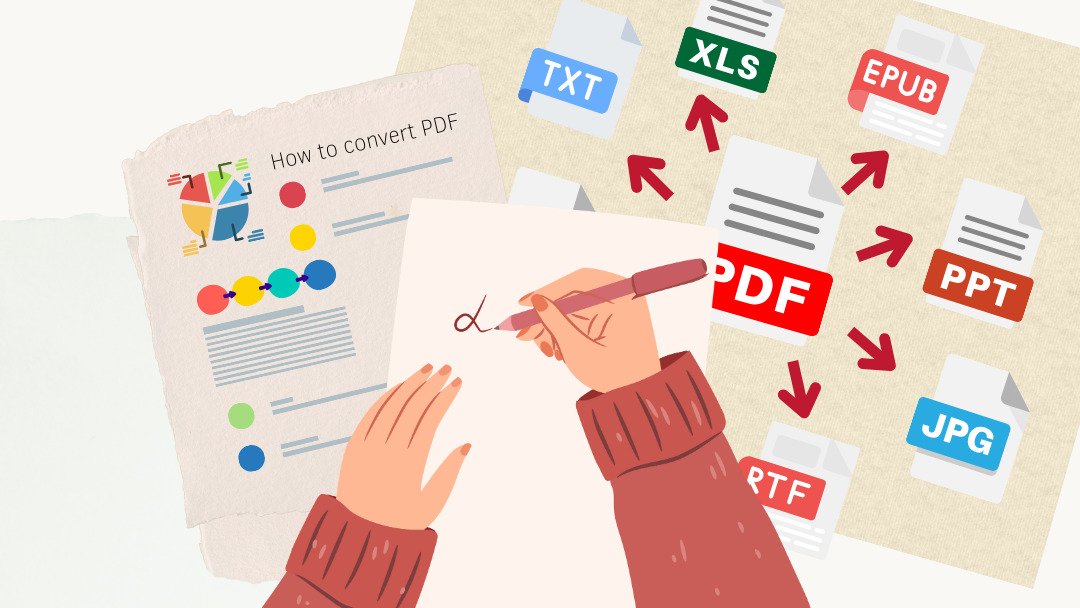
These tools help individuals and organizations convert PDFs into editable formats while preserving structured text, tables, and layout elements.
PDFs are widely used for distributing finalized documents, but they are not inherently designed for content reuse. When information needs to be revised, analyzed, or republished, extracting structured text and tables from a static PDF becomes essential.
File transformation tools address this need by converting PDFs into editable formats such as Microsoft Word. The most practical solutions preserve document hierarchy, table structure, and formatting, minimizing the need for manual cleanup. For non-technical users in particular, ease of use and reliable layout retention are critical.
Adobe Acrobat stands out as the most broadly suitable option for this purpose. Its browser-based conversion tools combine accessibility with layout-aware transformation, making it appropriate for general business, academic, and administrative use. The balance between usability and structural fidelity positions it as a practical baseline in this category.
Best File Transformation Tool for Balanced PDF-to-Word Conversion
Adobe Acrobat
A cloud-based PDF platform offering document conversion and editing tools.
Overview
Platforms supported: Web, Windows, macOS
Pricing model: Free tools with paid subscription tiers
Tool type: Cloud-based PDF conversion and document management suite
Strengths
- Convert PDFs into editable Word documents
- Preserve headings, paragraphs, and tables
- Browser-based access without installation
- Cross-device compatibility
- Integrated editing, compression, and security tools
Limitations
- Advanced batch processing requires subscription
- Highly complex layouts may require minor formatting adjustments
Editorial summary
Adobe Acrobat enables users to convert structured PDFs into editable Word files through Adobe Acrobat’s PDF to Word conversion tool. The process is browser-based, reducing friction for users working across devices.
Text hierarchy, tables, and formatting elements are typically preserved during conversion, which reduces the need to reconstruct documents manually. This is particularly useful for policy documents, research papers, or contracts that require revision.
Because conversion sits within a broader PDF ecosystem, Acrobat supports not only transformation but also editing, review, and secure sharing in one environment.
Best File Transformation Tool for OCR-Heavy Documents
ABBYY FineReader PDF
A desktop PDF editor with advanced OCR and document conversion capabilities.
Overview
Platforms supported: Windows, macOS
Pricing model: Paid license
Tool type: OCR-enabled PDF editor and converter
Strengths
- Advanced optical character recognition
- Accurate table reconstruction
- Batch processing capabilities
- Multilingual support
Limitations
- Requires desktop installation
- Higher complexity for casual users
Editorial summary
ABBYY FineReader PDF is suited to environments where scanned or image-based PDFs must be converted into editable text. Its OCR engine is designed to recognize document structure within non-native PDFs.
The tool is often appropriate for high-volume document digitization tasks.
Compared with Acrobat’s browser-based convenience, ABBYY emphasizes advanced recognition depth and desktop-based workflows.
Best File Transformation Tool for Open-Source Environments
LibreOffice Writer
An open-source word processor capable of importing and converting PDFs.
Overview
Platforms supported: Windows, macOS, Linux
Pricing model: Free, open source
Tool type: Desktop word processing application
Strengths
- Import PDFs into editable documents
- Export to common formats including DOCX
- Offline functionality
- Cross-platform support
Limitations
- Formatting inconsistencies with complex layouts
- Limited advanced OCR functionality
Editorial summary
LibreOffice Writer allows users to open PDFs and attempt direct conversion into editable documents. It is appropriate for open-source or Linux-based workflows.
While functional, complex formatting may require manual adjustment after import.
In contrast to Acrobat’s structured conversion interface, LibreOffice performs transformation within a general-purpose word processing environment.
Best File Transformation Tool for Developer Workflows
Pandoc
A command-line document converter supporting multiple format transformations.
Overview
Platforms supported: Windows, macOS, Linux
Pricing model: Free, open source
Tool type: Command-line document conversion utility
Strengths
- Convert between multiple document formats
- Scriptable for automation
- Suitable for batch processing
- Integration with publishing pipelines
Limitations
- Requires technical familiarity
- Less effective with visually complex PDFs
Editorial summary
Pandoc is suited to technically inclined users who need automated format transformation within larger publishing systems. It can assist in converting text-based PDFs into editable document formats.
Its strengths lie in flexibility and automation rather than visual fidelity.
Compared with Acrobat’s user-friendly interface, Pandoc prioritizes scripting and structured publishing workflows.
Best File Transformation Tool for Enterprise Office Environments
Nitro PDF Pro
A commercial PDF editor with document conversion and collaboration features.
Overview
Platforms supported: Windows, macOS
Pricing model: Subscription or license
Tool type: Desktop and cloud-enabled PDF editor
Strengths
- Convert PDFs into Word documents
- Structured editing capabilities
- Annotation and review tools
- Integration with business document systems
Limitations
- Requires installation
- Subscription-based access for full features
Editorial summary
Nitro PDF Pro is appropriate for organizations that combine document transformation with collaborative review processes. It integrates conversion tools within a structured business environment.
While effective, its workflow is oriented toward installed desktop software.
Conceptually, Nitro overlaps with Acrobat in scope, though Acrobat emphasizes browser-based accessibility in addition to desktop functionality.
From Extraction to Editorial Revision
Extracting structured content from PDFs is typically only the first stage in a document’s lifecycle. After conversion to Word, content often enters revision cycles involving collaborative editing, version control, and approval workflows.
For example, once a document is converted into an editable format, it may be shared and revised within a professional editing environment such as Grammarly Business, where language review and style consistency are managed across teams.
File transformation tools therefore function as transitional technologies. They unlock static content and allow it to move into editable, collaborative ecosystems where refinement and redistribution can occur.
Best File Transformation Tools: FAQs
Can all PDFs be converted accurately into Word documents?
Text-based PDFs convert more reliably than image-based scans. OCR-enabled tools are required for scanned documents.
Will formatting remain identical after conversion?
Most tools aim to preserve headings, paragraphs, and tables, though highly complex designs may require minor adjustments.
Are browser-based tools secure for sensitive documents?
Established platforms typically encrypt file transfers, though organizations with strict compliance requirements may prefer installed solutions.
When is a desktop solution preferable to a browser-based tool?
Desktop tools may be appropriate for high-volume processing, advanced OCR tasks, or environments requiring offline operation.