

Introduction
The fast development of technologies in 2025 means that the interoperability of mobile and desktop devices should be seamless to ensure maximum productivity and the continuity of the working process. The aka.ms/linkpc is the official Android gateway to connect with a Windows PC by use of the powerful correlation Link to Windows application.
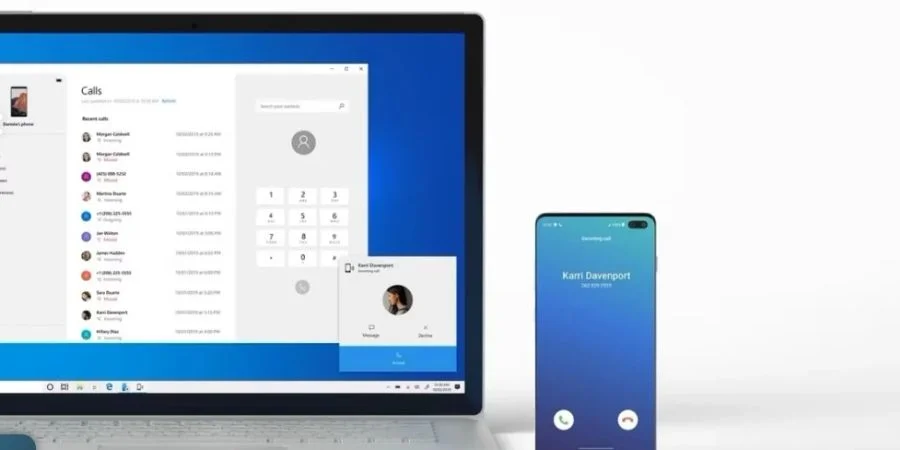
Be it a professional, a student, a content producer, or just a regular user, by using aka.ms/linkpc, you can read and send replies, get notifications, call, view photos, and even run your favorite Android apps, all in the comfort of your Windows 10 or Windows 11 computer.
This is a very comprehensive guide that will help you understand the nature, installation, functionality, upkeep, and future outlook of aka.ms/linkpc to enable you with a powerful cross-device experience.
What is the Link to Windows App?
Aka.ms/linkpc is a Microsoft domain URL designed to direct Android users to download and install the Link to Windows app that connects their phone to Windows computers. This functionality was formerly known as “Your Phone” and has evolved substantially, servicing millions worldwide by providing a unified interface to manage smartphone content on the desktop.
The connection is made by Wi-Fi and Bluetooth, which guarantees a high level of synchronization and real-time communication so that users can use it to send texts, make calls, view notifications, transfer files, and mirror applications with ease.
Why Choose the Link to Windows App?
Unified Communication Hub
Move your texting and calling to your PC environment to make it easy to communicate without switching devices.
Enhanced Productivity
Manage messages and apps effectively on the larger display of a full-size keyboard and the convenience of a touch-screen.
Transfer of Files and Photos instantly
Transfer images and files fast among devices without the use of cables or email attachments.
Real-Time Synchronization
Get real-time notifications on your computer and be able to react in real time on the phone.
Robust Security
Microsoft guarantees the encrypted transfer of data and will never grant any permission request without the express consent of the user.
System Requirements of the Link to Windows App
Windows PC
- Windows 10 (1903 or later) or Windows 11.
- Hardware: Bluetooth and Wi-Fi, at least 8GB RAM to provide the best performance.
- Phone Link application (installed or downloaded in the Microsoft Store)
Android Phone
- OS: Android 7.0 (Nougat) or later
- Connection to the Windows application is usually pre-installed on Samsung and HONOR devices.
- Network: Bluetooth and Wi-Fi supported and preferably linked to the same network as the PC.
- Microsoft Account: Signed in on both gadgets.
Step-by-Step Setup Instructions
Step 1: Prepare Your Windows PC
Open the Phone Link application in the Start menu or in the Microsoft Store. Use your Microsoft account to log in.
Step 2: Choose to install your Android phone.
Open your phone’s browser to aka.ms/linkpc or use the already installed link to the Windows application. Sign in using the same Microsoft account.
Step 3: Pair Devices via QR Code or Manual Entry
The PC app displays a QR code; using the phone’s app, scan it to pair devices. Alternatively, select manual pairing and enter the code.
Step 4: Grant Permissions
Grant access to notifications, messages, call log, contacts and media on demand. These are permissions that allow full syncing.
Step 5: Start syncing and use features.
Axe messages, calls, notifications, photos, and app mirroring directly on your Windows computer.
Detailed Feature Breakdown
Messaging and Calls
Integrated SMS and messaging app sync, offering full conversation threads and group messaging. Use your PC’s mic and speakers for calls.
Notification Sync
Receive and interact with notifications on Windows Action Center, including quick reply capability.
Photo Management
Access up to 2000 recent photos; drag and drop to transfer images with speed and ease.
App Mirroring
Run Android apps mirrored on PC, supporting mouse, keyboard, and touch inputs for dynamic interaction.
Clipboard Sharing
Copy text, links, or images on a phone or PC and paste seamlessly on the other device.
Additional Functions
Transform your phone into a high-definition webcam; control the phone’s hotspot from your PC interface.
Privacy and Security Considerations
Microsoft applies end-to-end encryption for all synced data. Users grant explicit permissions for all synced content, which is not shared with third parties. Unlinking phone and PC is immediate and straightforward. Compliance with GDPR, CCPA, and other frameworks ensures top-notch privacy protection.
Troubleshooting Common Issues
- Ensure both devices are on the same Wi-Fi network with Bluetooth enabled.
- Update the Phone Link and Link to Windows apps regularly.
- Turn off and turn on gadgets when there are connectivity or sync problems.
- Secure and facilitate all the required permissions on the Android phone.
- When calling problems, make sure that Bluetooth drivers in the PC are up to date and operational.
- Restart applications if they continue to fail.
Productivity Hints and Ideal Practices
- Any updates you want to get manually can be customized so as to be less distracting.
- Multitasking is better with several windows with Phone Link.
- It is advisable to change your Microsoft account passwords and privacy settings on a regular basis to guarantee maximum security.
- Keep the devices close to each other in order to maintain a good Bluetooth connection.
- Drag and drop and clipboard: Many features are used to make the workflow as efficient as possible.
User Testimonials
- My work process is so much more streamlined. Distractors at meetings with phones are eliminated! – Tanvi P.
- It would save me a lot of time to transfer pictures to the PC to use in the presentation. – Karan S.
- Having calls and texts on my laptop implies that I do not miss anything. – Meera L.
Prospects: Android and Windows Integration
- Microsoft plans to extend:
- Expansive Android device support for app mirroring.
- Intelligent notifications and intelligent responses.
- State-of-the-art multi-device and multi-account functionality.
- Close connectivity with the Microsoft 365 and the Teams ecosystem.
- Improved security based on real-time threat detection and mitigation.
Conclusion
Aka.ms/linkpc is one of the foundations of the new productivity, which perfectly combines Android and Windows to create a strong, unified user experience. As it is entirely set up, has rich features, is highly secure, and has a rich roadmap, it will continue to be a key tool to personal and professional users in 2025 and beyond.
It is time to start syncing things at mslinkpc.com, and keep up with the newest features and support.